Sender Help Center
  • Home
  • Pricing
  • Knowledgebase
  • Log In
  • Get Started
Menu
Sender Help Center
Close menu
Home Pricing Knowledgebase
Log In Get Started
Floating Floating Floating Floating Floating

Knowledge Base

Search
  • Authenticate your domain
  • Automation
  • Drag & Drop Email Editor
  • Getting started with deliverability
  • Getting started with Sender
  • Integrations
  • Manage contacts
  • Payment & Billing
  • SMS campaigns
  • Subscription forms
Knowledge Base
FAQ Contact Us
Home/Knowledge Base/

How to migrate to Sender?

Last Updated: Jan 28, 2026
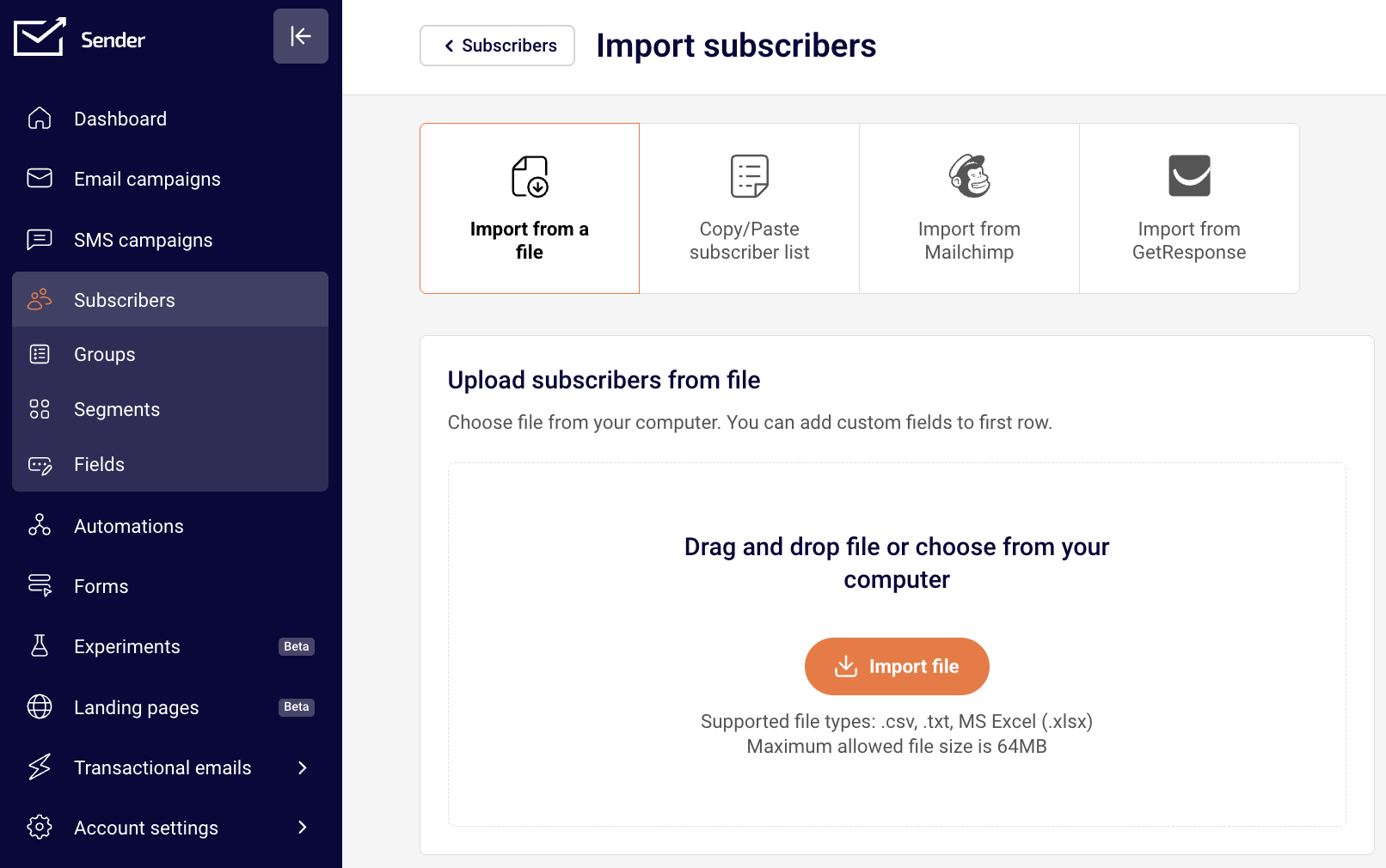
Migrating your subscriber list to Sender is easy and straightforward. We have multiple methods to help you transfer your contacts seamlessly, whether you’re moving from another email marketing platform or importing your existing list.

This guide will walk you through all available migration options, helping you choose the best method for your needs.

How to migrate from Mailchimp or GetResponse?

We have dedicated articles for an easy to follow step-by-step instructions on how to migrate from these two platforms.

Follow this comprehensive tutorial to migrate from Mailchimp. 

Click here for a tutorial on how to migrate from GetResponse.

Migrating from any other tool

File Upload Import

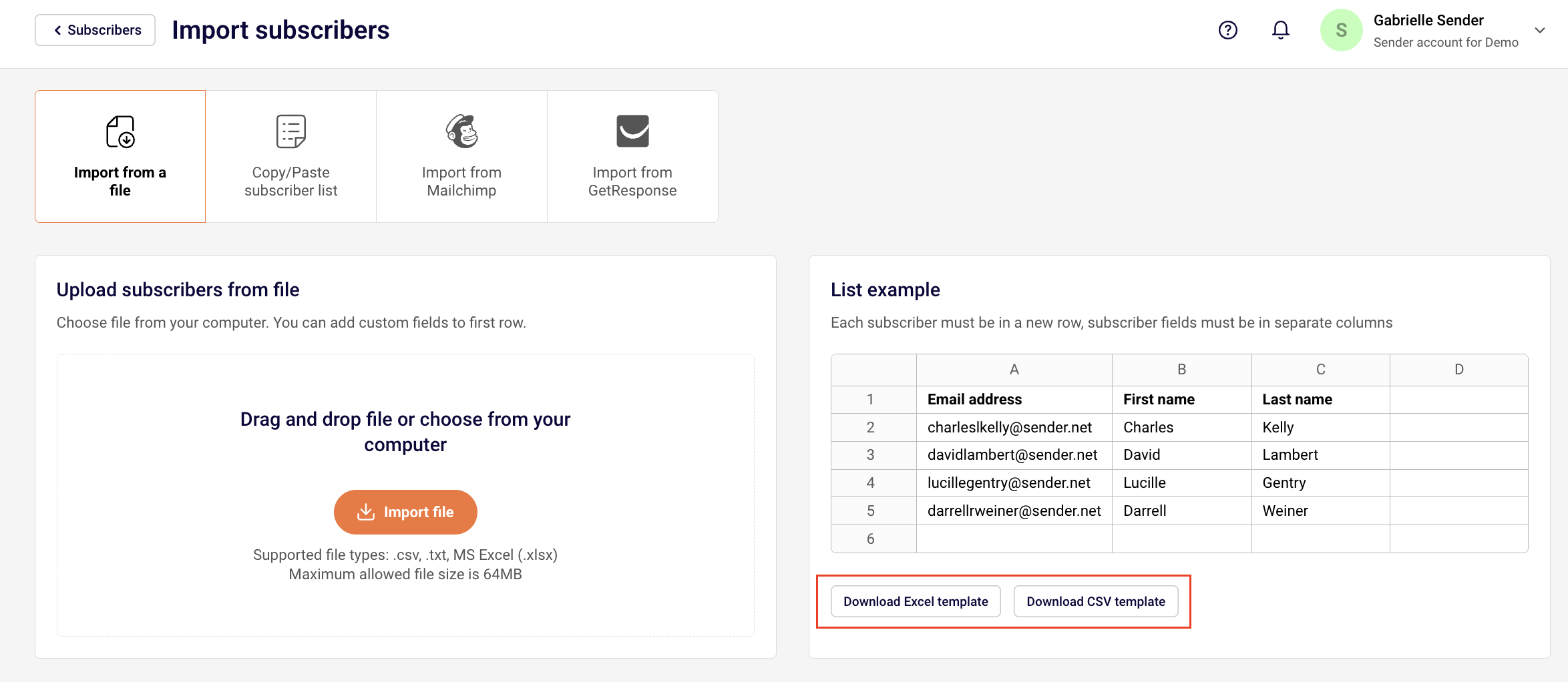
If you prefer to upload your subscriber list directly, Sender supports multiple file formats.

Supported file formats:

  • .csv (Comma-Separated Values)
  • .txt (Text files)
  • MS Excel (.xlsx)

NOTE: Maximum file size: 64MB

Step-by-Step File Upload Process

  1. Navigate to Subscribers > “Add subscribers”
  2. Click “Import via file” option
  3. Upload your file (drag and drop or browse)

If your subscribers are in another type of file and you need a clean template to add all of your subscribers before import, we provide a downloadable Excel and CSV templates.

Copy/paste method

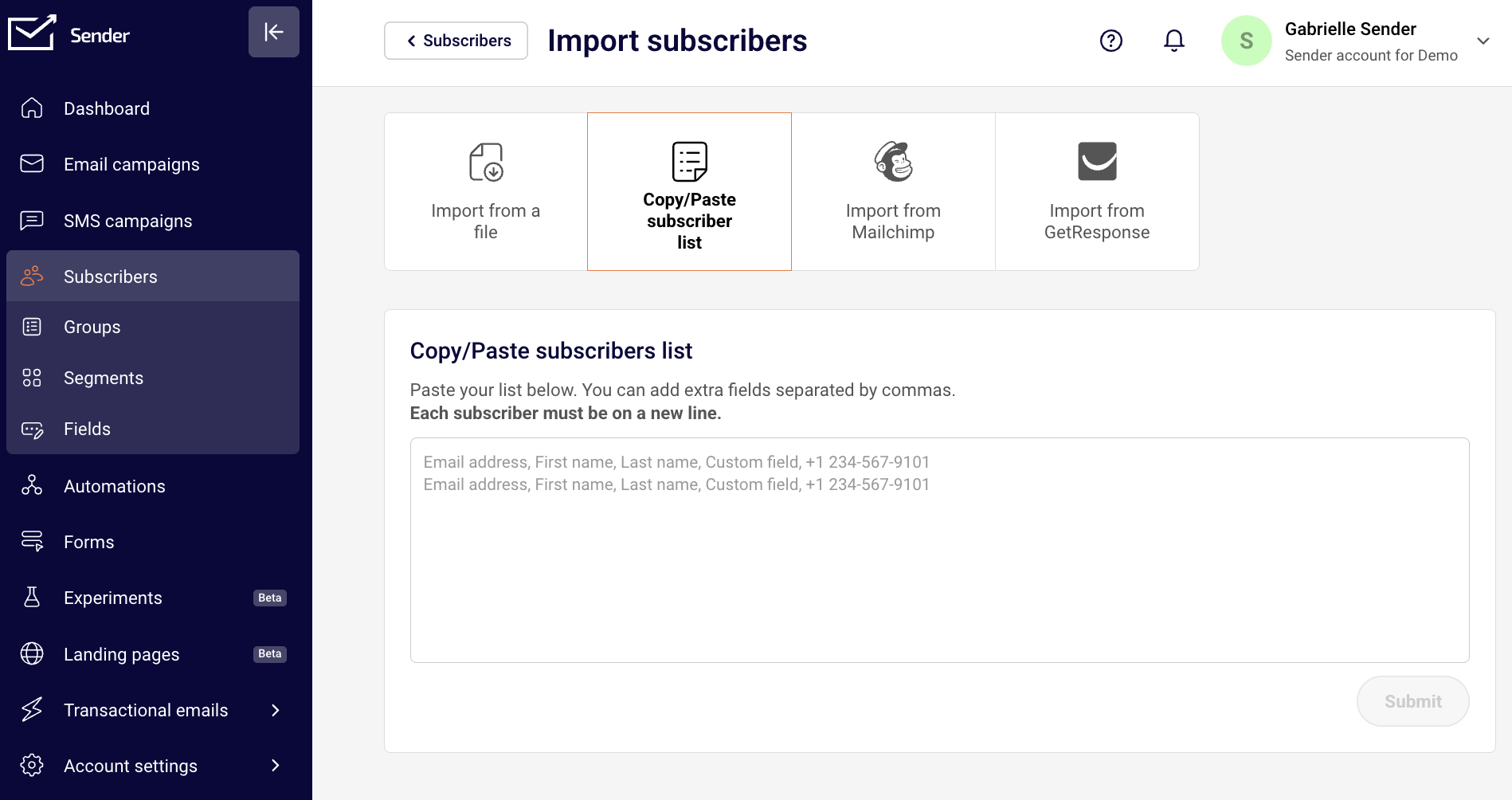
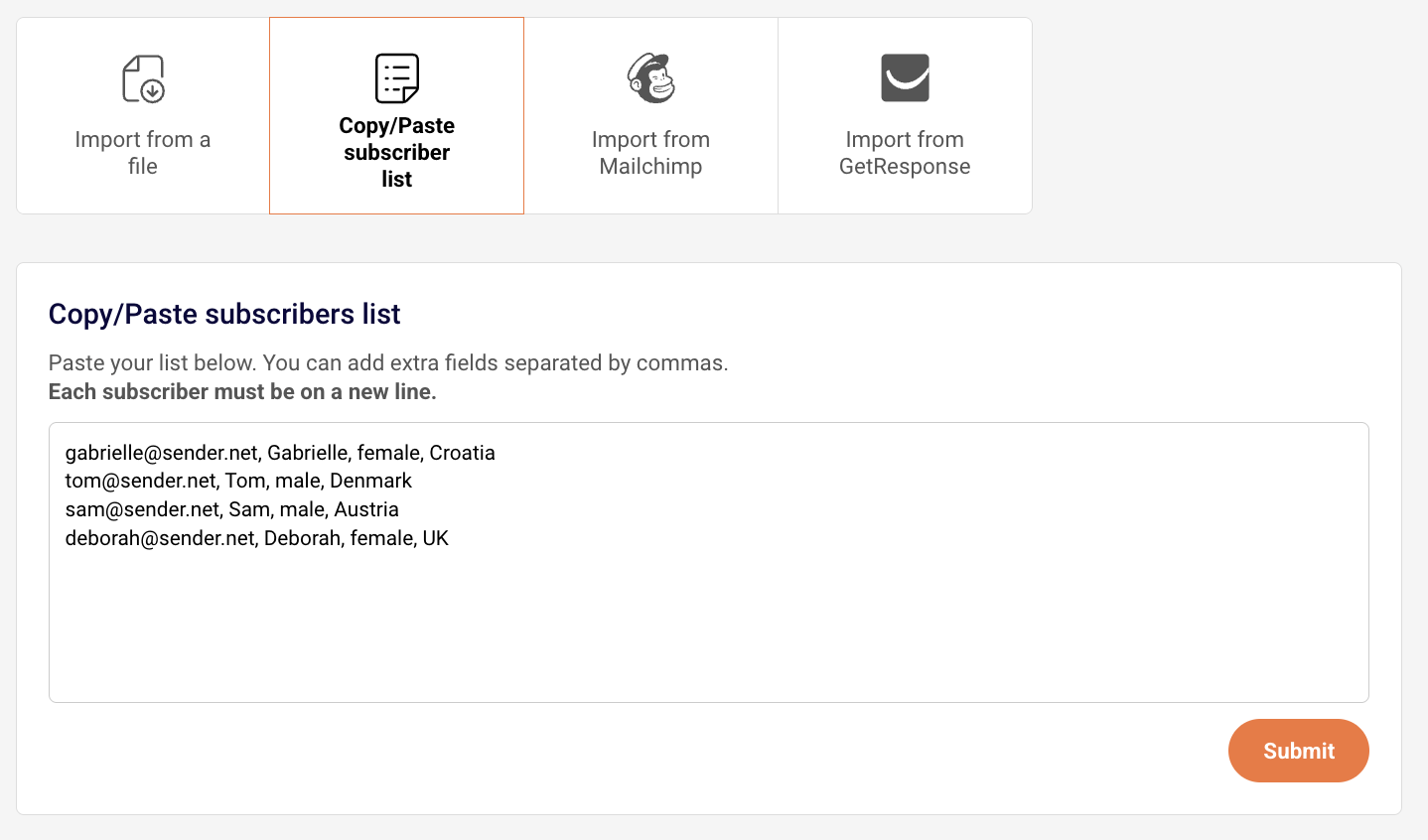
For smaller lists or quick additions, the manual copy & paste method is convenient.

  1. Go to Subscribers > “Add subscribers”
  2. Select the “Copy & Paste subscriber list” option

3. Paste your subscriber data directly into the text field

4. Ensure your data includes email addresses or phone number (required)

5. Each subscriber should be added into a new row with their additional information separated by commas

Next step is the same, regardless if you chose to import from a file or via the copy/past method.

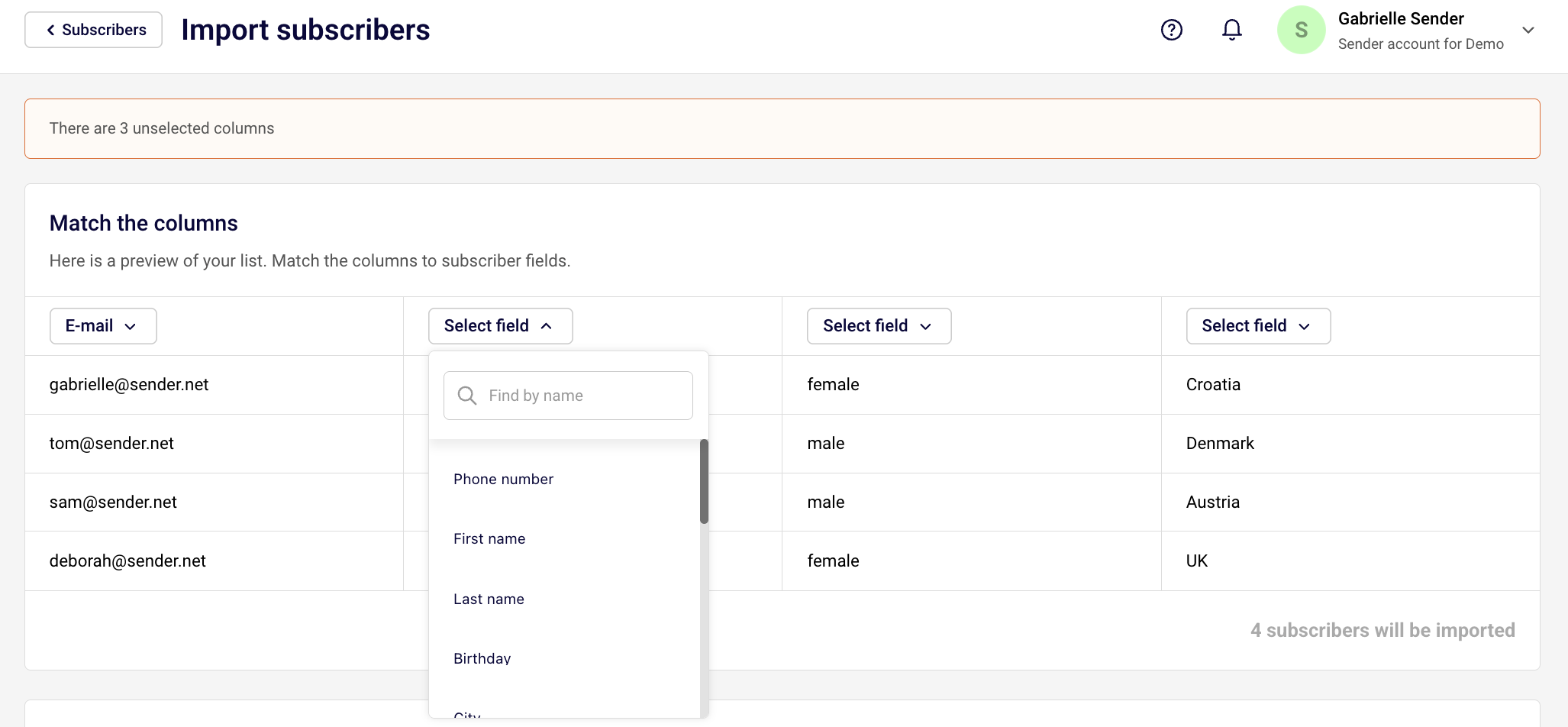
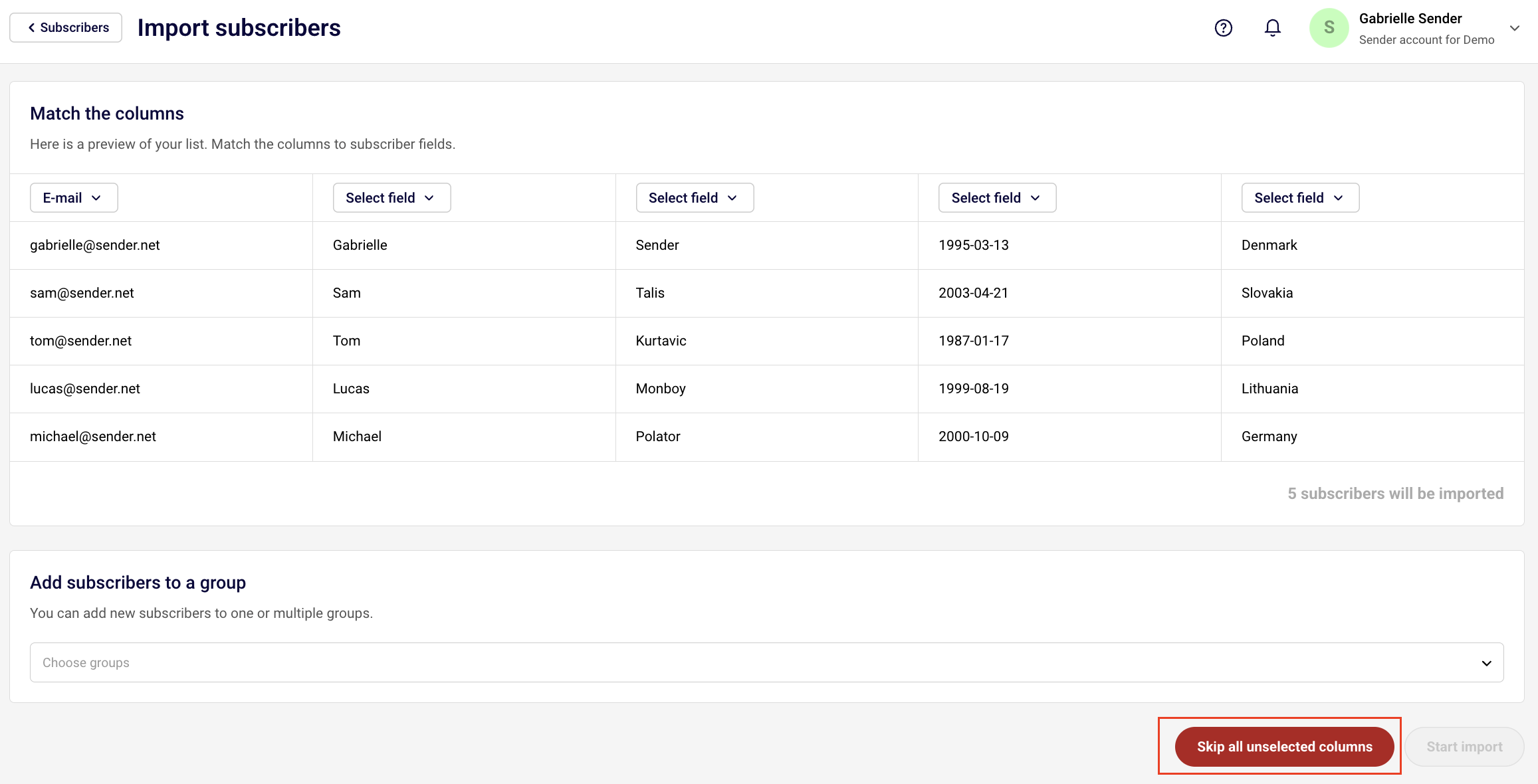
After uploading your file or pasting your subscribers, you’ll need to map your columns to Sender’s custom fields:

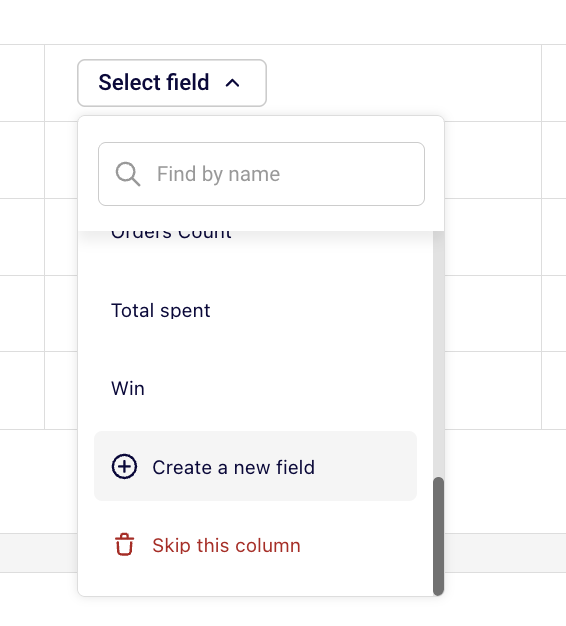
If you do not have a custom field for a particular column of data, you can create one by clicking “Create a new field” at the bottom of the drop-down bar or skip the collumn all together if you don’t need that information imported.

You can also skip all unselected columns if you have all of unneccessary information and do not want to skip them one-by-one.

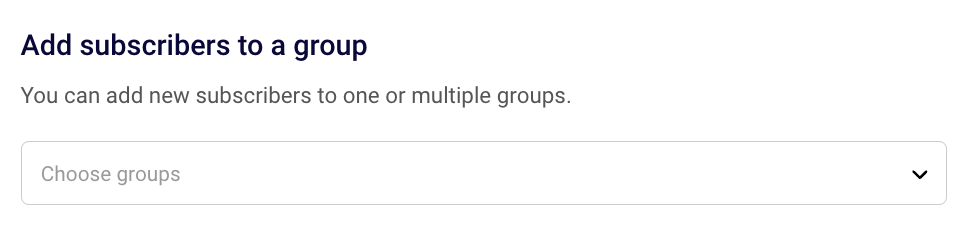
When importing subscribers, you’ll be prompted to assign them to a group. Groups help you organize your contacts and target specific audiences with your campaigns.

You can select one or multiple groups upon import. You can also skip this step but it may be hard for you to differenciate your subscribers in the future when you are sending campaigns. 

Selecting recipients for email and SMS campaigns has to be done by choosing groups, segments or all active subscribers, therefore we suggest making sure that each subscriber belongs to at least one group to make it easier for yourself in the future.

Once you are all set, click “Start import”.

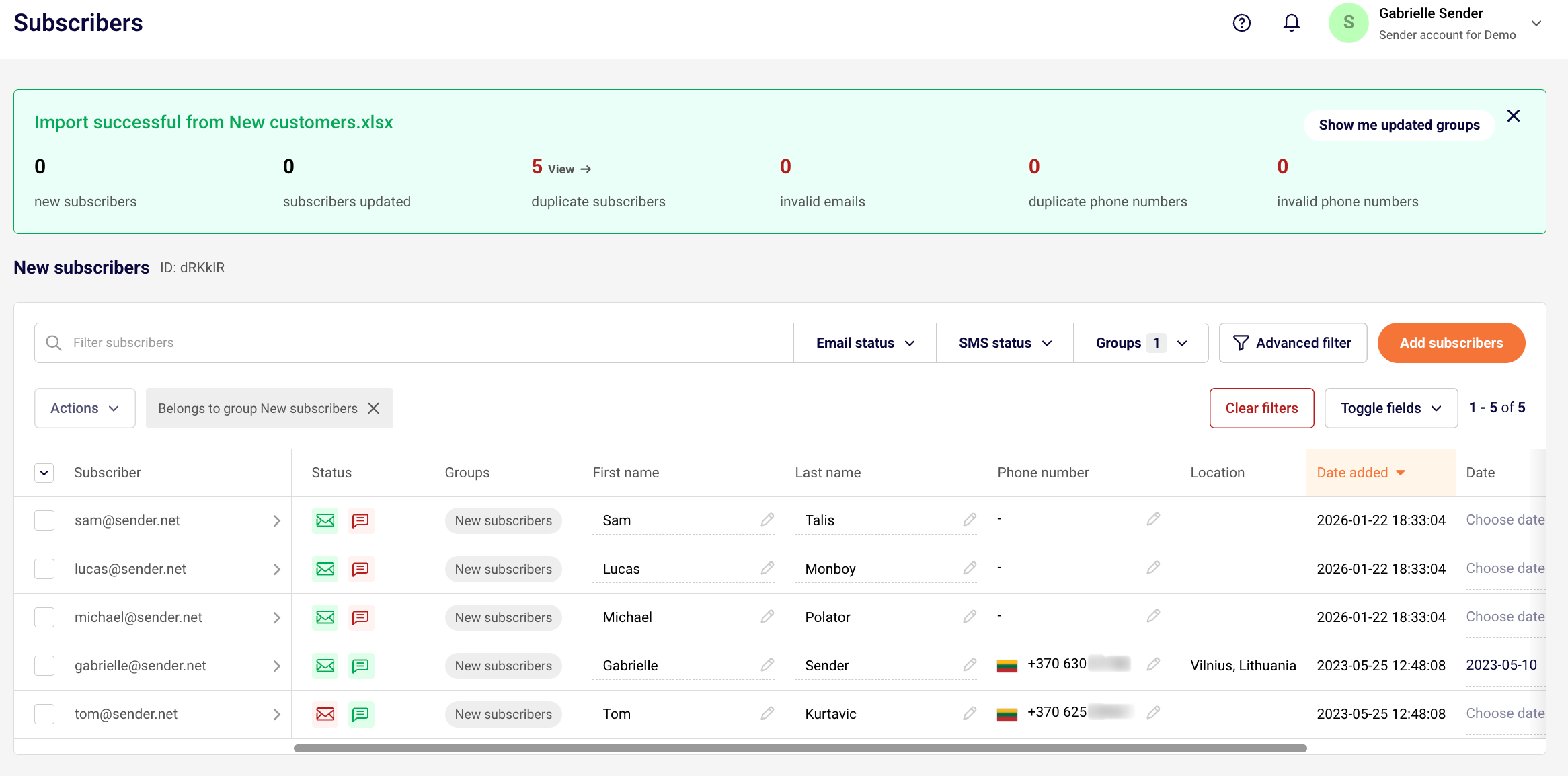
After that, you will see your import progress and results. 

  • New subscribers – subscribers that have been imported to your list for the first time.
  • Subscribers updated – subscribers that have been imported in your list in the past. After import, their custom field information has been updated with the new data provided during the upload.
  • Duplicate subscribers – if the file contained the same email address more than once, only one copy of that email address will be uploaded to prevent duplicate imports.
  • Invalid emails – email addresses that contains typos, unsupported characters or unfinished email addresses.
  • Duplicate phone numbers – if the file contained the same phone number more than once, only one copy of that phone number will be uploaded to prevent duplicate imports.
  • Invalid phone numbers – partial phone number or the phone number that is missing a plus sign and country code. 

Best Practices for Migration

Before You Import

  1. Clean your list – remove inactive or invalid email addresses,
  2. Organize your data – structure your file with clear column headers,
  3. Prepare custom fields – decide which additional data you want to track,
  4. Plan your groups – determine how you’ll segment your audience.

During Import

  1. Assign to appropriate groups – don’t skip this step to prepare well for future sends,
  2. Map all relevant fields – ensure data transfers to the correct custom fields,
  3. Review field mapping – double-check before finalizing the import,
  4. Start with a test – if you have a large list, import a small batch first.

After Import

  1. Verify subscriber count – ensure all contacts imported successfully,
  2. Check custom field data – confirm information is mapped correctly,
  3. Review group assignments – make sure subscribers are in the right groups,
  4. Send a welcome campaign – re-engage your migrated subscribers.

Troubleshooting Common Issues

Import Fails

  • Check file format – ensure you’re using .csv, .txt, or .xlsx,
  • Verify file size – must be under 64MB,
  • Remove special characters – some characters may cause import errors,
  • Check email format – all emails must be valid addresses.

Missing Custom Field Data

  • Review field mapping – make sure columns were assigned correctly,
  • Check data format – dates should be in YYYY-MM-DD format.

Subscribers Not Showing in Groups

  • Assign during import – groups must be selected when importing,
  • Manually add to groups – you can assign groups after import via the dashboard.

That’s it!

If you are stuck on a specific task or can’t find a way to execute a particular job, contact our support team via LiveChat or [email protected] – we’re here to help 24/7.

Premium capabilities Feels enterprise,
minus the price

All the features your business needs to acquire high-quality leads, grow sales, and maximize revenue from campaigns
using one simple dashboard.


Get Started For Free
shape 1
shape 2
shape 3
Sender logo
Product
Email marketing platformEmail marketingEmail automationBulk email senderEmail blast serviceNewsletter softwareText messaging serviceMarketing automationEmail templatesPricing
Features
Email campaignsDrag & drop email builderHTML email builderEmail A/B testingAudience segmentationEmail personalizationReports & AnalyticsLanding page builderAll features
Knowledge Base
Getting started with SenderGetting started with deliverabilityDomain authentication guideMarketing automation guideDrag & drop email builder guideIntegration guideSMS campaigns guidePayments & billingContact management guideGetting started with subscription forms
Support & Resources
Email marketing tipsHelp centerMigration serviceReport abuseTraining videosSender APIIntegrations
Company
Contact usAffiliate programTerms of serviceAnti-spam policyPrivacy policy
Get Started For Free
Trusted by 180,000 successful
businesses worldwide
Brand ratings
© 2012-2026 Sender.net
GDPR Compliant
ISO Certified
Secure Data Practices