Brand assets
Last Updated:
Brand Assets is a powerful feature that allows you to save your brand’s visual identity—including your logo, colors, fonts, and social media links—so they are automatically applied to all your email campaigns and templates.
This ensures consistent branding across all your marketing communications without having to manually configure each campaign.
Your logo will be displayed anywhere you have a logo block in your email campaigns. To upload your logo:
Supported formats: JPG, PNG, or GIF.
Tip: Make sure your logo is visible on a dark background, as some email templates may use darker color schemes.
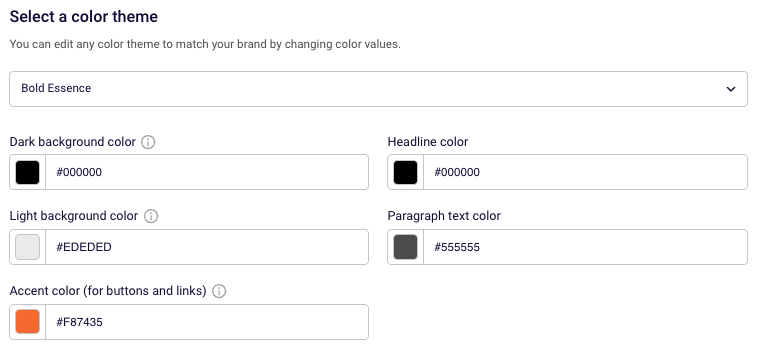
You can customize your brand colors to match your visual identity. Sender offers preset color themes, or you can manually adjust each color value to perfectly match your brand guidelines.
The following color settings are available:
To customize colors:
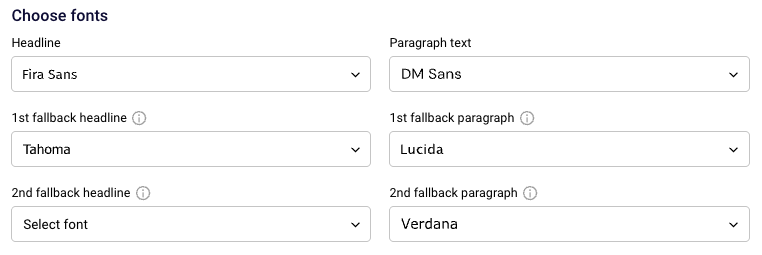
Typography plays a crucial role in brand recognition. Sender allows you to set both primary fonts and fallback options to ensure your emails look great across all email clients.
Font settings include:
To select fonts:
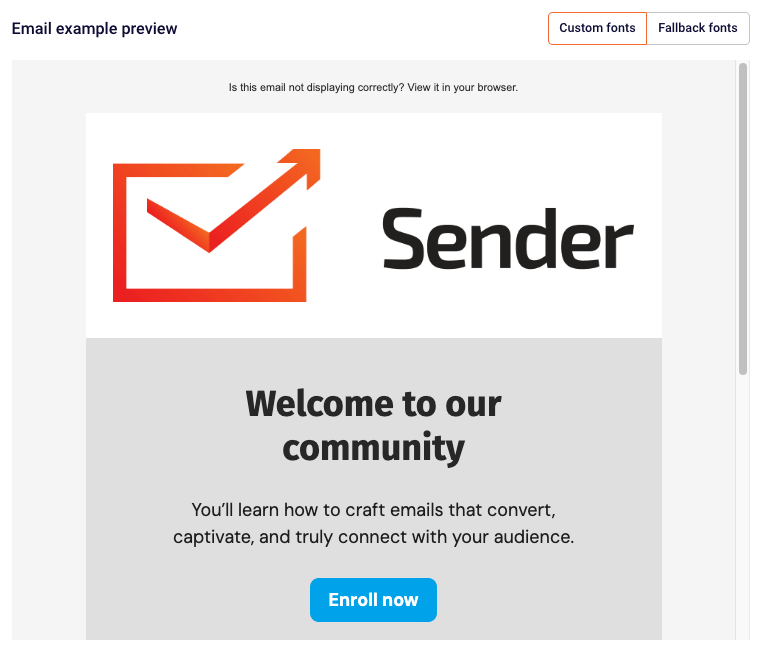
Note: You can preview how your emails will look with custom fonts versus fallback fonts using the toggle buttons in the Email example preview panel on the right side of the screen.
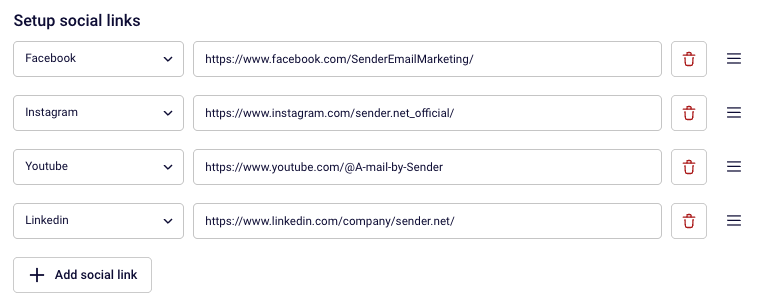
Add your social media profiles so they can be easily included in your email campaigns. Social icons will automatically appear in templates that include a social block.
To add a social link:
Want to save time? Sender can automatically import your brand assets from your website. This feature extracts your brand colors, fonts, logo, and social links directly from your website URL.
To use automatic brand setup:
Note: New styles will be applied to all new branded blocks and email templates. Existing campaigns will remain unchanged unless edited.
The right side of the Brand Settings page displays a live email preview showing how your brand settings will look in an actual email campaign. This preview updates in real-time as you make changes.
Use the preview to:
Once you’re satisfied with your brand configuration, click the “Save brand” button in the top right corner.
If you got stuck on a specific task or can’t find a way to execute a particular job, contact our support team via LiveChat or [email protected] – we’re here to help 24/7.
All the features your business needs to
acquire high-quality leads, grow sales, and maximize revenue from campaigns
using one simple dashboard.