Sender Help Center
  • Home
  • Pricing
  • Knowledgebase
  • Log In
  • Get Started
Menu
Sender Help Center
Close menu
Home Pricing Knowledgebase
Log In Get Started
Floating Floating Floating Floating Floating

Knowledge Base

Search
  • Authenticate your domain
  • Automation
  • Drag & Drop Email Editor
  • Getting started with deliverability
  • Getting started with Sender
  • Integrations
  • Manage contacts
  • Payment & Billing
  • SMS campaigns
  • Subscription forms
Knowledge Base
FAQ Contact Us
Home/Knowledge Base/

Brand assets

Last Updated: Jan 29, 2026
Brand Assets is a powerful feature that allows you to save your brand’s visual identity—including your logo, colors, fonts, and social media links—so they are automatically applied to all your email campaigns and templates.

This ensures consistent branding across all your marketing communications without having to manually configure each campaign.

How to access brand assets

  1. Log in to your Sender account.
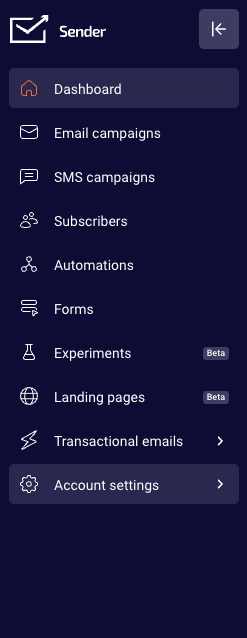
  2. Go to Settings.
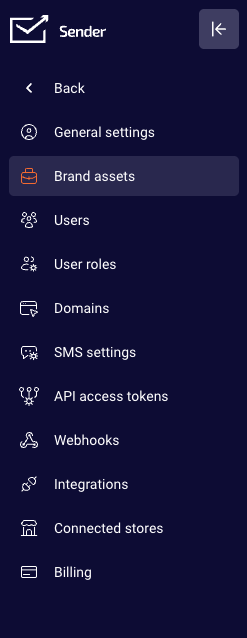
  3. Select “Brand assets” from the settings menu.

Upload your logo

Your logo will be displayed anywhere you have a logo block in your email campaigns. To upload your logo:

  1. Click the “Upload image” button in the logo section.
  2. Select an image file from your computer.
  3. Your logo will appear in the preview area.

Supported formats: JPG, PNG, or GIF.

Tip: Make sure your logo is visible on a dark background, as some email templates may use darker color schemes.

Select a Color Theme

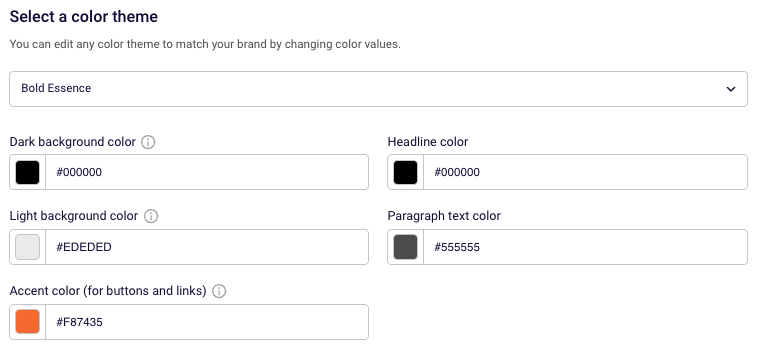
You can customize your brand colors to match your visual identity. Sender offers preset color themes, or you can manually adjust each color value to perfectly match your brand guidelines.

The following color settings are available:

  • Dark background color: this color will be applied to the chosen email backgrounds. In your design, make sure to use well-contrasting text and button colors on dark backgrounds.
  • Light background color:this color will be applied to the chosen email backgrounds. In your design, make sure to use well-contrasting text and button colors on light backgrounds.
  • Headline color: The color applied to your email headings and titles.
  • Paragraph text color: The color used for body text in your emails.
  • Accent color (for buttons and links): choose a color for buttons and links that is well visible on both dark and light backgrouds.

To customize colors:

  1. Select a preset theme from the dropdown menu (e.g., “Bold Essence”), or
  2. Enter specific hex color values (e.g., #F87435) in each color field to match your brand exactly.

Choose Fonts

Typography plays a crucial role in brand recognition. Sender allows you to set both primary fonts and fallback options to ensure your emails look great across all email clients.

Font settings include:

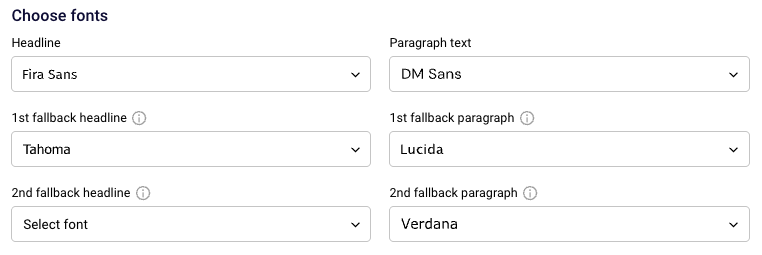
  • Headline font: The primary font for your email headings (e.g., Fira Sans).
  • Paragraph text font: The primary font for body text (e.g., DM Sans).
  • 1st fallback headline/paragraph: A secondary font that displays if the primary font isn’t available in the recipient’s email client.
  • 2nd fallback headline/paragraph: A tertiary font option for maximum compatibility.

To select fonts:

  1. Click the dropdown menu next to each font setting.
  2. Select your preferred font from the available options.
  3. Set fallback fonts to ensure consistent display across different email clients.

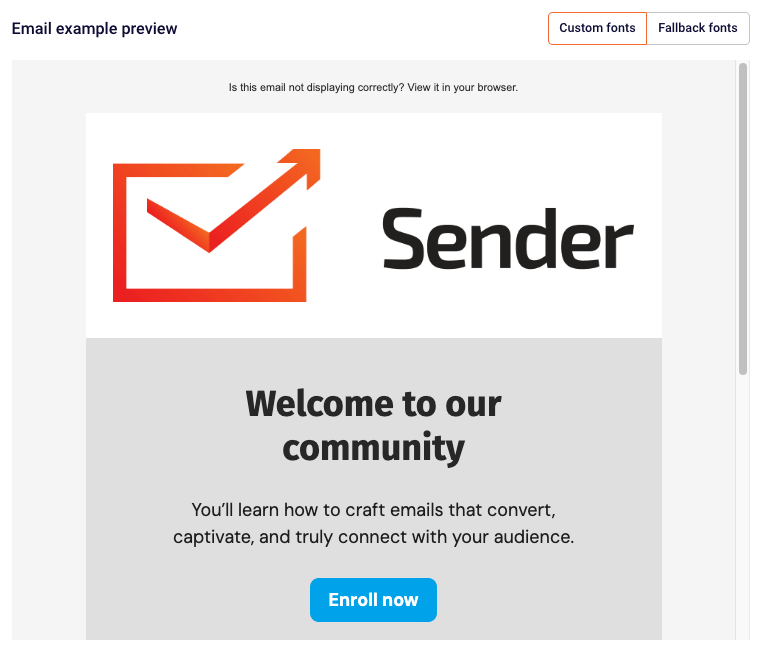
Note: You can preview how your emails will look with custom fonts versus fallback fonts using the toggle buttons in the Email example preview panel on the right side of the screen.

Setup Social Links

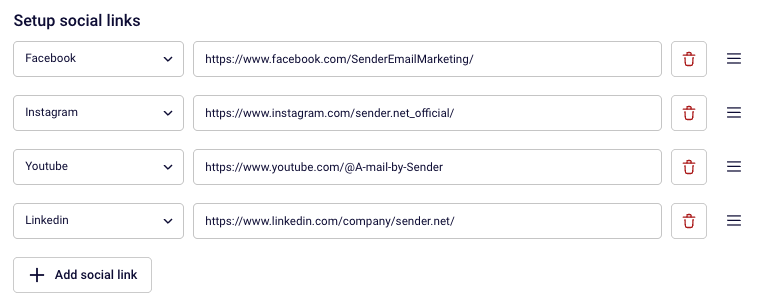
Add your social media profiles so they can be easily included in your email campaigns. Social icons will automatically appear in templates that include a social block.

To add a social link:

  1. Click “+ Add social link” button.
  2. Select the social media platform.
  3. Enter your profile URL.

Automatic Brand Setup

Want to save time? Sender can automatically import your brand assets from your website. This feature extracts your brand colors, fonts, logo, and social links directly from your website URL.

To use automatic brand setup:

  1. Scroll down to the “Automatic brand setup” section.
  2. Enter your website URL in the input field (e.g., https://sender.net).
  3. Click the “Import” button.
  4. Review the imported settings and make any necessary adjustments.

Note: New styles will be applied to all new branded blocks and email templates. Existing campaigns will remain unchanged unless edited.

Preview Your Brand Settings

The right side of the Brand Settings page displays a live email preview showing how your brand settings will look in an actual email campaign. This preview updates in real-time as you make changes.

Use the preview to:

  • See how your logo appears in the email header.
  • Check how your color scheme looks across different email sections.
  • Toggle between “Custom fonts” and “Fallback fonts” to see how your emails will render in different email clients.
  • Verify that buttons and links display correctly with your accent color.

Once you’re satisfied with your brand configuration, click the “Save brand” button in the top right corner.

That’s it!

If you got stuck on a specific task or can’t find a way to execute a particular job, contact our support team via LiveChat or [email protected] – we’re here to help 24/7.

Premium capabilities Feels enterprise,
minus the price

All the features your business needs to acquire high-quality leads, grow sales, and maximize revenue from campaigns
using one simple dashboard.


Get Started For Free
shape 1
shape 2
shape 3
Sender logo
Product
Email marketing platformEmail marketingEmail automationBulk email senderEmail blast serviceNewsletter softwareText messaging serviceMarketing automationEmail templatesPricing
Features
Email campaignsDrag & drop email builderHTML email builderEmail A/B testingAudience segmentationEmail personalizationReports & AnalyticsLanding page builderAll features
Knowledge Base
Getting started with SenderGetting started with deliverabilityDomain authentication guideMarketing automation guideDrag & drop email builder guideIntegration guideSMS campaigns guidePayments & billingContact management guideGetting started with subscription forms
Support & Resources
Email marketing tipsHelp centerMigration serviceReport abuseTraining videosSender APIIntegrations
Company
Contact usAffiliate programTerms of serviceAnti-spam policyPrivacy policy
Get Started For Free
Trusted by 180,000 successful
businesses worldwide
Brand ratings
© 2012-2026 Sender.net
GDPR Compliant
ISO Certified
Secure Data Practices